
VRAMHog
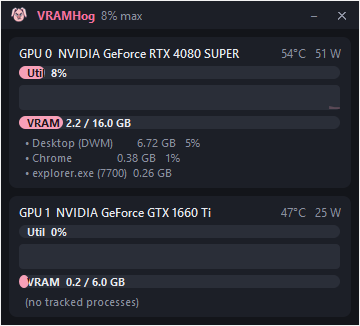
A tiny always-on-top widget that shows which app is eating your VRAM.
Windows · NVIDIA · free and open source
Download for Windows View on GitHubWhy this exists
Task Manager will happily tell you the GPU is at 98%. It will not tell you
which of your six open apps is responsible — and if you run local AI
tools, half of them show up as identical python.exe entries.
VRAMHog does. It sits in a corner of your screen, names the apps properly, and shows exactly how much VRAM each one is holding.
Installing it
-
Download
VRAMHog.exefrom the latest release. It's a single file — there's no installer. -
Put it somewhere permanent
like
Documentsor aToolsfolder. Don't leave it inDownloads, since the widget will need to find itself again if you switch on "Start with Windows". - Double-click it. Windows will show a blue "Windows protected your PC" box the first time — that's expected, here's how to get past it.
- That's it. The widget appears in the top-left of your screen. Drag it wherever you like; it'll remember.
You'll need
- Windows 10 or 11
- An NVIDIA graphics card, with the normal NVIDIA driver installed
AMD and Intel graphics aren't supported — VRAMHog reads NVIDIA's own driver
library to get its numbers. You do not need Python, or anything else,
to run the .exe.
"Windows protected your PC"
To run it anyway:
- Click More info in the blue box.
- Click Run anyway.
You'll only have to do this once per version.
Prefer to check it first?
Two things you can do, and both are reasonable habits for any unsigned download:
- Scan it. Upload the file to VirusTotal for a second opinion from ~70 antivirus engines. (A couple of engines flag every PyInstaller-built app on principle; that's a known false positive pattern.)
-
Check the fingerprint. Run this in PowerShell, in the folder you saved
the file to:
For v1.0.0 it should print:Get-FileHash .\VRAMHog.exe -Algorithm SHA256
If it matches, the file you have is byte-for-byte the file that was published. If it doesn't, don't run it.6ab70df03afdb8fbba2201553ad503a89a1de5de361aaa809b8d27ffefeabcd5
And because it's open source, you can always skip the .exe entirely
and run it from the source code instead.
Using it
Right-click the bunny-pig in your system tray for the menu. Everything is a toggle, and every choice is remembered.
| Menu item | What it does |
|---|---|
| Restore | Brings the widget back after you've minimised it. |
| Compact view | Shrinks it to a slim strip of bars. Double-clicking the widget does the same thing. |
| Show GPU% on tray icon | Replaces the tray icon with your busiest GPU's load, as a red number on pink. |
| Start with Windows | Launches VRAMHog automatically when you log in. Untick to stop. |
| Show splash on start | The logo screen at launch. Untick if you'd rather it start silently — handy once it's launching at every login. |
| Quit | Closes it properly. The ✕ on the widget does the same; the – just hides it to the tray. |
If something's not right
It says "No NVIDIA GPU found"
VRAMHog talks to NVIDIA's driver directly. This message means that driver didn't answer. Usually one of:
- The machine has AMD or Intel graphics — not supported, sorry.
- The NVIDIA driver isn't installed, or needs a reboot after an update.
- You're on a laptop where the NVIDIA chip is currently powered down. Opening any GPU-using app usually wakes it.
Nothing happens when I double-click it
It's probably already running — VRAMHog only allows one copy at a time, and a second launch just brings the existing one back to the front. Check the tray (including behind the ^ arrow). If the widget is hidden off-screen, right-click the tray icon and choose Restore.
The process list is empty, but the GPU bars work
The per-app numbers come from Windows' own GPU performance counters. If those are disabled or damaged on your machine, the summary still works but the list goes quiet. Rebuild the counters from an administrator Command Prompt and reboot:
lodctr /RAn app shows up as "python.exe" instead of its real name
VRAMHog recognises apps from a keyword list, and yours isn't on it yet.
Either open an issue
naming the tool, or add it yourself — it's a one-line change in
vramhog/process_labeler.py, and pull requests are welcome.
"Start with Windows" won't stay ticked
VRAMHog adds a shortcut to your Startup folder, and something is blocking it —
usually a managed/work PC, or a security tool guarding that folder. You can
add it by hand instead: press Win + R, type shell:startup,
and drop a shortcut to VRAMHog.exe into the folder that opens.
Running from source
If you'd rather not run a downloaded executable:
git clone https://github.com/scarylasers/VRAMHog.git
cd VRAMHog
pip install -r requirements.txt
python -m vramhog.main
Needs Python 3.10 or newer. To get Desktop and Start Menu shortcuts that launch it without a console window flashing up:
powershell -ExecutionPolicy Bypass -File install_shortcuts.ps1What it does and doesn't do
- It reads GPU statistics and the names of processes using the GPU. That's all.
- No network connection, no telemetry, no analytics, no update check.
- The only thing it writes is a small settings file at
%APPDATA%\VRAMHog\config.jsonholding your window position and toggles — plus the Startup shortcut, if you ask for one. - Nothing is installed and nothing is added to your registry. Delete the
.exeand it's gone.